Will It Break? How to Verify Your Design Without Installing Anything


EverySim Dev Team
Company


A drone frame, a bracket, a phone mount, a custom enclosure… You finish the 3D design and everything looks great on screen. But the same question always comes up: "Will it actually hold up under real-world loads?"
That used to mean either building an expensive prototype or buying simulation software that costs tens of thousands of dollars. Structural analysis tools have been around for decades, but between the heavy installs, steep learning curves, and high-end hardware requirements, they always felt like something only engineers at big companies had access to.
Not anymore. Open a browser tab on the laptop you already have, and you can get meaningful analysis results in under 10 minutes.
This post walks through the whole process — from uploading a 3D CAD file to spotting exactly where your part might fail — using a browser-based structural analysis (FEA) workflow with zero installation.
What Does Structural Analysis (FEA) Actually Tell You?
Even if you've never run a simulation before, the core idea is simple. Structural analysis (FEA) boils down to two questions:
"When force hits my part, where does the stress pile up?"
"Is that stress more than the material can take?"
You get the answer as a color map painted onto your 3D model. Blue means low stress — safe. Red means high stress — that's where trouble starts (depending on the color map you choose, this scale may vary). If the red zones go past what the material can handle, those spots are likely to bend, crack, or break.
Engineers run this check as a matter of course before manufacturing anything. But there's no reason designers, makers, or students can't do the same — the only thing that held them back was the tooling.


The Old Way: When the Process Was Harder Than the Problem
Running even one simulation the traditional way meant a lot of friction. Install a heavy desktop application, dig through menus to clean up geometry, generate a mesh, plug in material properties, set boundary conditions — and then wait for the solver to grind through it on a high-end PC.
By the time the stress map finally showed up, you'd already burned through most of your time and patience. The part that actually matters — rethinking the design — got whatever was left over.


The New Workflow: Upload, Set Up, Run
This is exactly where browser-based simulation flips the script. Here's how it works in EverySim — five steps, start to finish.
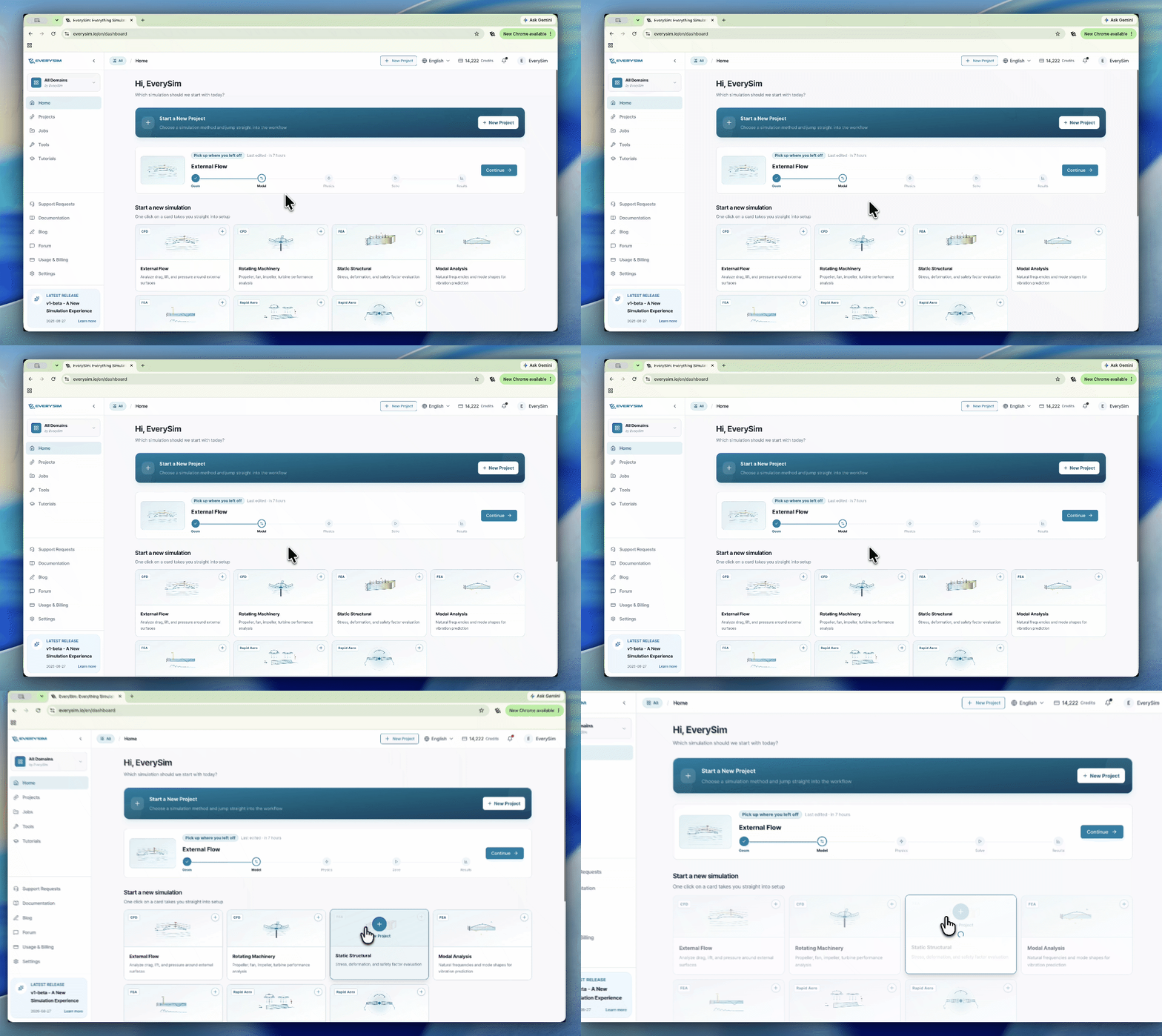
Step 1. Start a Project Right in the Browser — No Installation
Nothing to download. Open the platform in Chrome, Edge, Firefox, or Safari, pick "Structural Analysis," and you're in. Works on any laptop — even a tablet.
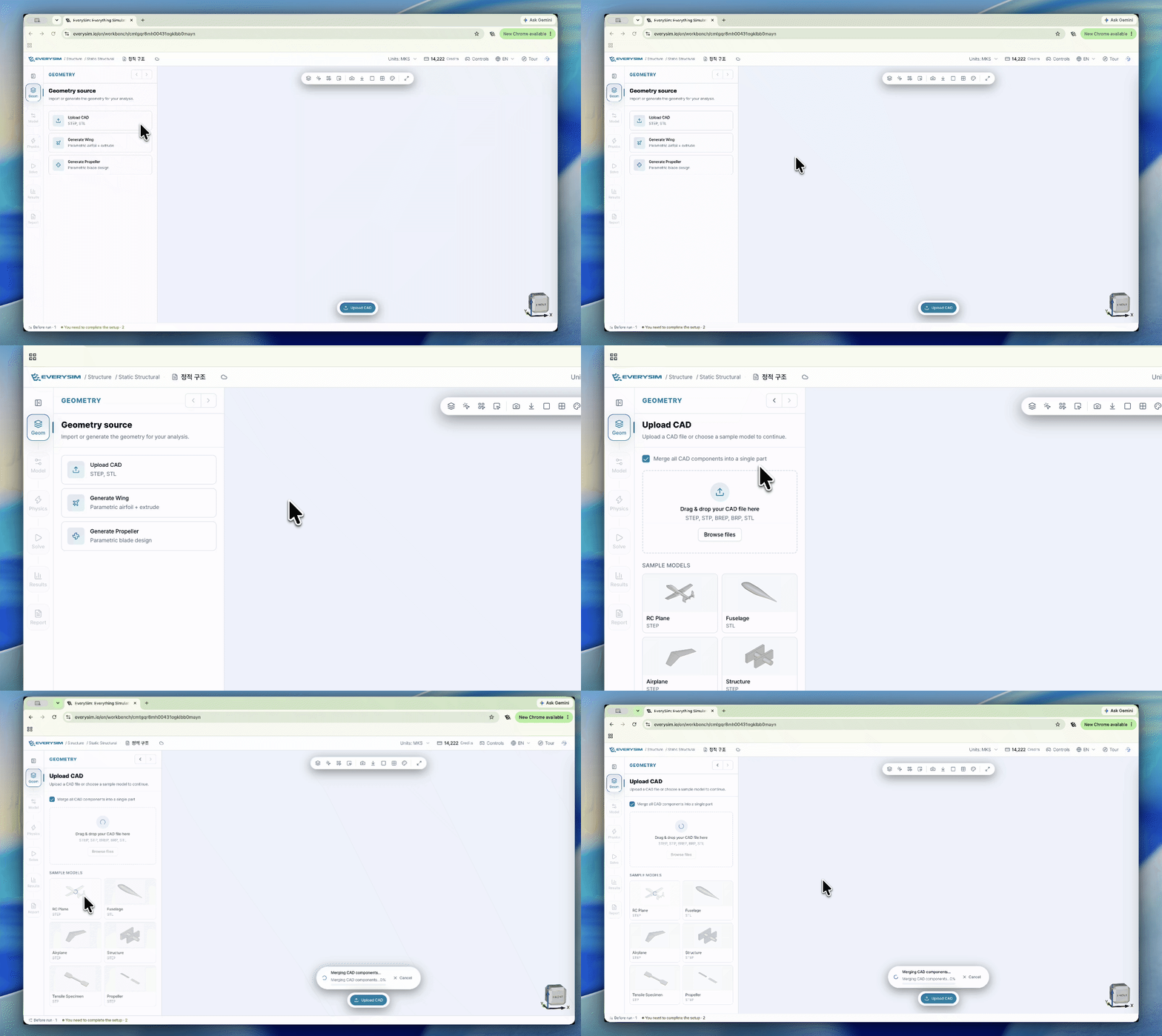
Step 2. Upload Your CAD File
Drop in a STEP or STL file of the part you want to test. The platform reads the geometry and gets it ready for analysis automatically — no manual cleanup or format conversion needed.
Step 3. One-Click Material Selection
The built-in library covers the usual suspects — aluminum, steel, plastics, carbon fiber composites, and more. Pick the one that matches your part, and the material properties are set.
Step 4. Define Real-World Conditions (Boundary Conditions)
Tell the software how your part is used in the real world:
Fixed areas: Where is the part constrained? (e.g., bolt holes)
Load application points: Where does the force act? (e.g., the tip of a drone frame where the motor mounts)
Load magnitude: How much force? (e.g., 50 N downward)
No wading through nested sub-menus — just click faces directly on the 3D model and enter the values.
Step 5. Run the Analysis and Inspect the Results
Hit [Run]. The computation happens in the cloud, so your machine barely breaks a sweat — the 3D viewer stays smooth the whole time.
Within a few minutes, a color-coded stress map shows up right on the model. Rotate it, zoom in, poke around — you can spot the weak points at a glance. Five steps, and you've got real data to base your design decisions on.
Real-World Example: Fixed-Wing UAV Wing Strength Verification
Here's what this looks like in practice. Say you're designing a fixed-wing UAV and you need to know whether the wing spar can handle lift loads during a banking turn without bending too much.
Upload the wing geometry CAD into EverySim.
Set the wing root — where it joins the fuselage — as a fixed boundary condition.
Apply an aerodynamic pressure load to the leading edge, simulating an extreme flight scenario.
Select a carbon steel from the material library and run the analysis.
Three minutes later, the von Mises stress distribution shows up right on the model. You can see straight away whether stress is piling up at the spar-to-fuselage junction (meaning it needs reinforcement), or whether the skin is thicker than necessary (meaning you can shave weight). Either way, you're making decisions based on data now — not gut feel.
Want to try a different shape? Swap in a new CAD file, re-run, and compare the results side by side.
Who Is EverySim For?
You don't need simulation expertise to get started.
Design engineers: Check whether an early-stage concept is structurally sound before committing to production tooling.
Engineering students: See how structures actually behave under load — where stress builds up, where things flex.
3D printing enthusiasts and DIY makers: Find out if a printed part can handle the forces it'll face before you put it to work.
Startups and small teams: Run real simulations without sinking money into expensive desktop CAE licenses.
Anyone who's ever looked at something they designed and thought: "But will it actually hold?"
This isn't trying to replace the heavy-duty tools that aerospace companies use on assemblies with millions of elements. It's about making the everyday stuff — quick strength checks, early concept validation, comparing one material against another — fast and painless.
Desktop vs. Browser: Where Each One Wins
Every tool has trade-offs. Here's how they stack up.
Traditional Desktop FEA | Browser-Based FEA (EverySim) | |
Setup time | 15–30+ minutes | 2–3 minutes |
Hardware | High-end workstation | Any laptop or tablet |
Learning curve | Steep — weeks to months | Minimal — first results in minutes |
Sweet spot | Large, complex full-assembly analysis | Design checks, prototyping, learning |
Cost | Expensive multi-thousand-dollar licenses | Accessible from any browser |
If you need extreme precision — certifying a bridge or analyzing a jet engine turbine blade — the heavy desktop tools are still the way to go.
But for checking whether a bracket is strong enough before you cut metal, or making sure a 3D-printed mount won't snap under load — the browser gets you there faster and with a lot less overhead.
Give It a Try
The best way to tell if a simulation tool works for you is to throw your own geometry at it. If you've got a STEP or STL file sitting on your computer, you're 10 minutes away from seeing its stress map.
Open a new project in EverySim and find out where your design is strong — and where it needs work.
EverySim Dev Team
Company
The EverySim Dev Team is responsible for sharing insights, updates, and knowledge about Everysim’s vision, technology, and industry trends.
Comment
No comments yet.
Be the first to leave one!
Write a comment


Why Soldiers Break Step on Bridges

