Tutorials
The Tutorials page teaches each simulation mode hands-on. Pick a card and EverySim sets up a project with a sample model, then guides you through setup, the run, the results, and the report.
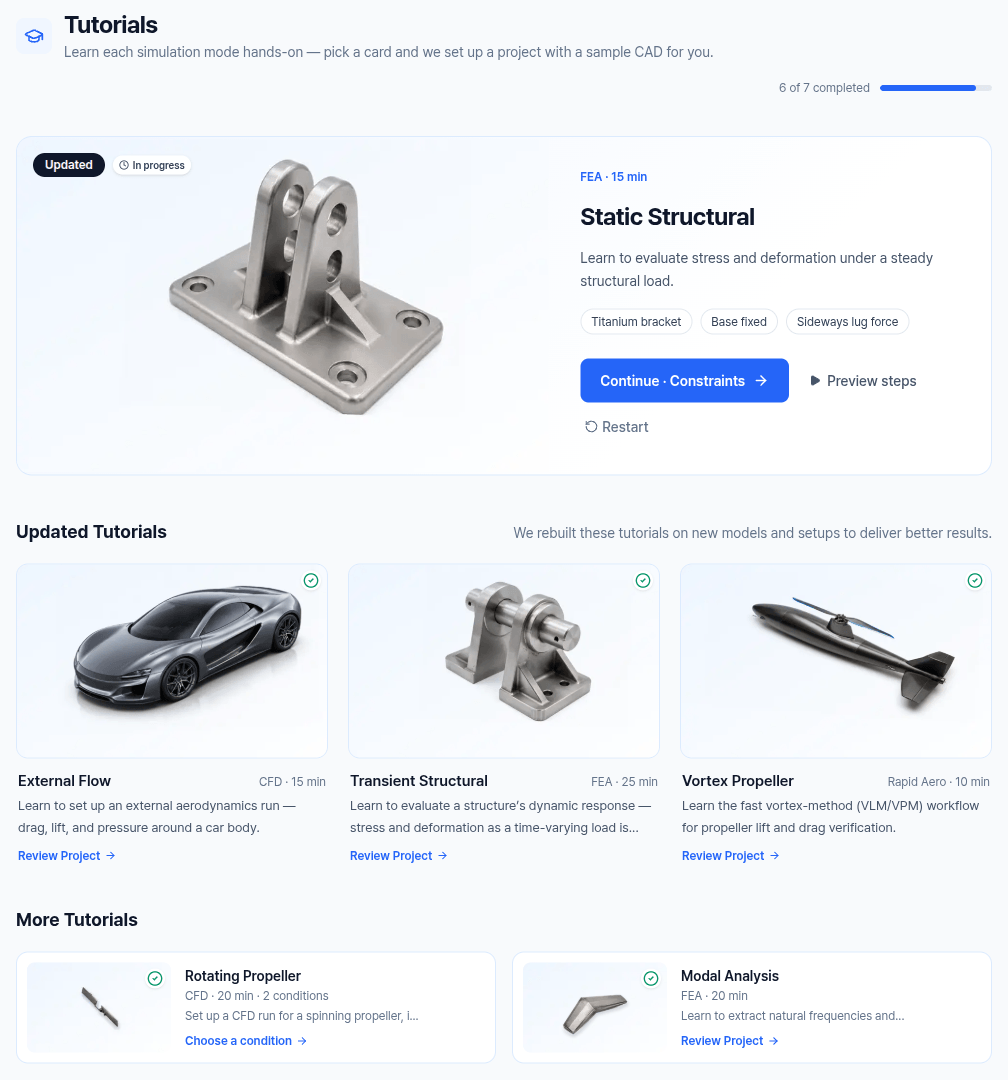
The page leads with a featured tutorial, the first updated one you have not finished. The other updated tutorials follow under Updated Tutorials, and the rest under More Tutorials. Each card is tagged CFD, FEA, or Rapid Aero.
Tutorials run on a tablet or laptop. On a phone the cards are dimmed and cannot be opened, but projects you finished are in your project list, where you can view their results.
The Seven Tutorials
| Tutorial | Tag | Time | Sample model | What it covers | Guide |
|---|---|---|---|---|---|
| External Flow | CFD | 15 min | Car | Drag, lift, and pressure around a car body: box flow, cut section, pressure on the body | Open Tutorial Page → |
| Static Structural | FEA | 15 min | Titanium bracket | Stress and deformation under a steady load: base fixed, sideways lug force | Open Tutorial Page → |
| Transient Structural | FEA | 25 min | Clevis pin | Dynamic response to a time-varying load: pulsed force, time playback | Open Tutorial Page → |
| Rapid Aerodynamics Propeller (card: Vortex Propeller) | Rapid Aero | 10 min | Fuselage with a rotor mast | Rapid Aerodynamics workflow: rotor over a fuselage, hover, wake and report | Open Tutorial Page → |
| Static Wind Propeller | CFD | 20 min | Propeller | Static-thrust CFD for a propeller spinning in still air | Open Tutorial Page → |
| Rotating Machinery | CFD | 20 min | Propeller | Rotating-frame CFD for a spinning propeller with air flowing into it | Open Tutorial Page → |
| Modal Analysis | FEA | 20 min | Airplane | Natural frequencies and mode shapes, with Free-Free as the analysis type and no constraints or loads | Open Tutorial Page → |
The Rotating Propeller Card
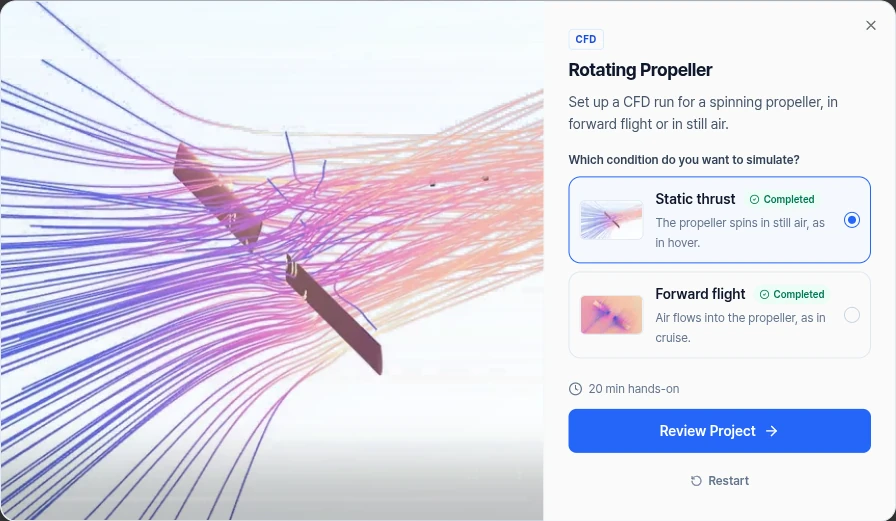
Static Wind Propeller and Rotating Machinery share one card, Rotating Propeller (CFD · 20 min · 2 conditions). Clicking it opens a preview that asks Which condition do you want to simulate?
| Condition | Tutorial | When to pick it |
|---|---|---|
| Static thrust | Static Wind Propeller | The propeller spins in still air, as in hover. |
| Forward flight | Rotating Machinery | Air flows into the propeller, as in cruise. |
Each condition keeps its own progress. The card shows 1 of 2 done when you have finished one of them.
Card Actions
Clicking any other card opens its project directly. The label on the card tells you what the click does:
- Start Tutorial: sets up a new project with the sample model.
- Continue · step: returns to the step you left, for example Continue · Constraints.
- Review Project: reopens a finished tutorial's project with its results. Click View Tutorial there to go back through the steps. The setup stays locked while you do.
Two more actions appear on the card when you hover over it, and on the featured card all the time:
- Preview (Preview steps on the featured card): opens a dialog with the result animation, the description, the time, and the start button. It does not change anything.
- Restart: appears once you have started a tutorial. It asks Restart This Tutorial? and then starts over on a new project.
Restart deletes the current tutorial project and its results. Use Review Project if you only want to look at them again.
How Progress Works
- Progress is saved automatically.
- To stop, click the EVERYSIM logo. You return to the dashboard.
- When you open an unfinished tutorial project again, the Pick Up Where You Left Off card appears. Click Continue the Tutorial.
- Cards show In progress or a green check for completed. Above the cards, a bar counts your finished tutorials, for example
6 of 7 completed. It appears once you have finished one. - When you finish, the completed screen offers View Steps to go back through the tutorial.
- Some tutorials were rebuilt on new models and setups. An unfinished attempt from before the rebuild starts over on a new project. A finished one stays as it is, so Review Project can show its older model and values.
How Guidance Works
Each tutorial runs in a guide card over the workbench, and shows the workbench stage you are on: Geometry, Model, Physics, Solve, Results, or Report.
- Green highlight: do this. During a tutorial only the highlighted control can be used.
- Purple highlight: just look. These pages have no task, and their values stay at what the tutorial needs.
- Tasks: each page lists its to-dos. Click a task to read its detail.
- Next: turns on when every task on the page is done. Run Simulation and Open the Report pages move on by themselves. The last page shows Finish.
In a tutorial, Run Simulation does not submit a solver job. The simulation card shows a run for about 3 seconds, then a result computed in advance opens. Everyone sees the same result.
Need Assistance or Have Questions?
Frequently Asked Questions: FAQ Link
Support Inquiries: support@everysim.io