CAD Guidelines for Simulation
This page provides guidelines for preparing and importing CAD files for Structural Analysis (FEA), Fluid Dynamics (CFD) and Rapid Aerodynamics (Vortex Lattice) simulations.
Selecting the right CAD format and ensuring geometry quality are critical first steps before running any simulation. Poor CAD quality can lead to mesh generation failures or unreliable results.
1. Supported File Formats by Simulation Type
| Simulation Type | Supported Formats | Notes |
|---|---|---|
| Structural Analysis (FEA) | .step, .stp, .iges, .igs, .brep, .stl | Multiple parts supported |
| Fluid Dynamics (CFD) | .step, .stp, .iges, .igs, .brep, .stl | Merge multiple bodies in CAD before upload |
| Rapid Aerodynamics (VLM) | .stl | Max 4,000 surface mesh elements |
The Upload CAD card in the workbench reads "STEP, STL", but the upload view accepts every format listed above. .brp files are not accepted, so save BREP files as .brep.
A Stationary Body in rotating flow is a separate upload, and it must be STEP, IGES or BREP.
If you are unsure which format to use, .step is the most universally compatible option for both FEA and CFD workflows.
1.1. Geometry Check and Repair
The app inspects geometry on import, and the Geom step reports what it finds. The Your Own CAD page shows the health report in detail.
- STEP, IGES, BREP: Blocking defects must be resolved before running, and warnings may affect result accuracy. Heal Geometry repairs what it can.
- IGES: Surfaces are joined into solids automatically on import, and any gaps are shown before you run.
- Multi-body STEP: Parts are split body by body in the geometry tree, so you can select and set up each body on its own.
- STL: The upload is checked for defects that would fail meshing, listed as Risk items: Hole (Open Edge), Triangles Running into Each Other, Walls Lying on Each Other and Edge Shared by Three or More Triangles. Heal Geometry closes holes where it can and reports what it closed and what it left open, so check the patched areas. If a repair would make things worse, the STL is left unchanged. In that case, fix the geometry in CAD and export the STL again.
2. Structural Analysis (FEA) CAD Requirements
2.1. Supported Formats
.step,.stp: ISO 10303 standard format. The most commonly used exchange format, supported by virtually all CAD applications..iges,.igs: Surface-oriented exchange format. IGES is sewn into solids on the server, and pieces that do not close block the run..brep: Boundary representation format. It carries no unit information, so the app asks for the unit on import..stl: Tessellated surface mesh format. Usable for structural analysis, but shape distortion may occur on curved surfaces; only single parts are considered. Set a high tessellation resolution when exporting. STL carries no unit information, so the app asks for the unit on import.
2.2. Geometry Requirements
- Multiple parts: Keep Merge All CAD Parts into a Single Part on to analyze one body with one material, or turn it off to assign materials per part and connect parts with Bonded Contact in Physics.
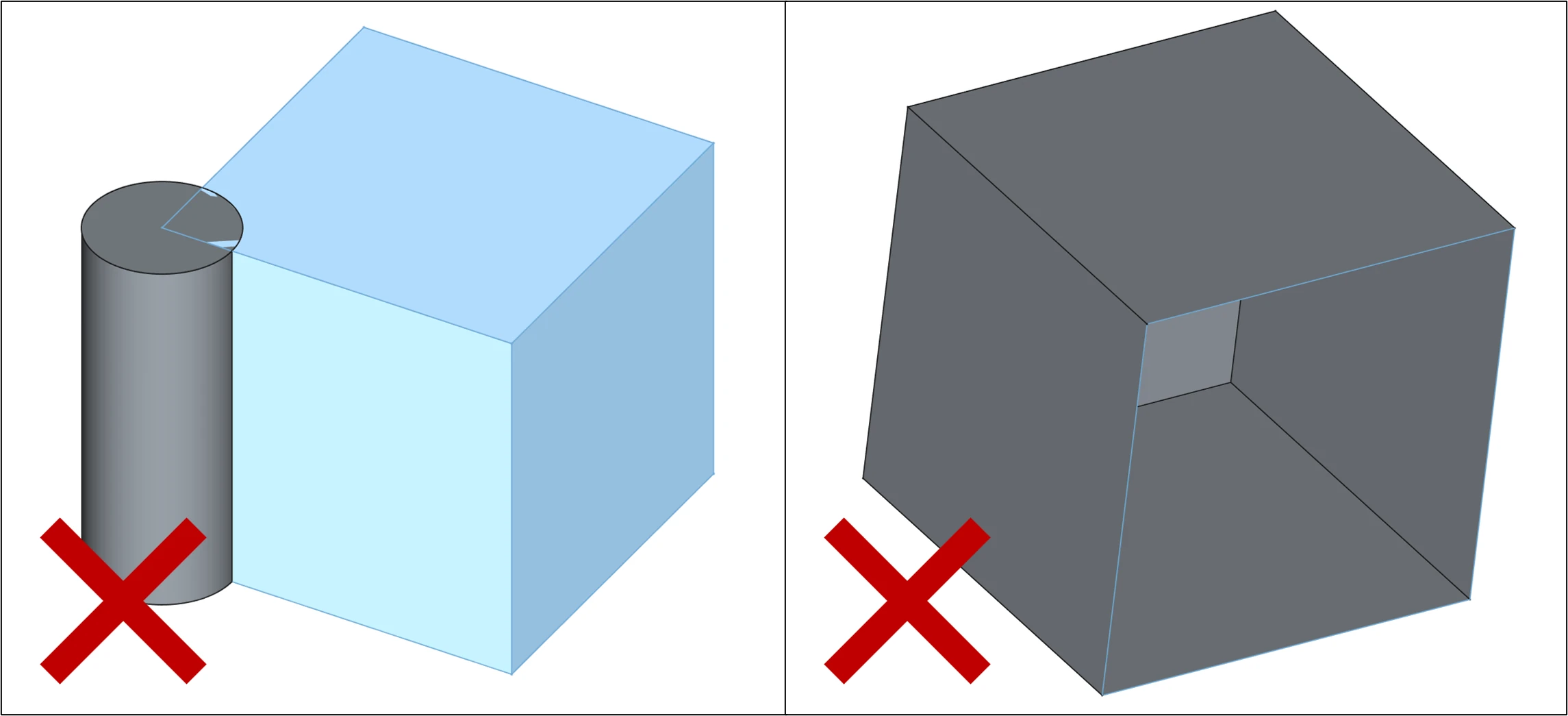
- No self-intersections: Faces must not penetrate or intersect each other.
- Closed volumes: Each solid must be fully enclosed with no open surfaces. Check the health report in Geom. Heal Geometry can close holes; if it is not offered, fix the model in CAD and import it again. Geometry with no solid can't take a material, and an open STL blocks a structural run.
- Clean topology: Avoid duplicated faces, zero-area faces, or degenerate edges.
The Your Own CAD page walks through the upload and the full structural workflow.
2.3. Sample CAD File
A sample CAD file is provided for testing FEA workflows. The upload view also offers Sample Models.
- FEA Example.step — Sample CAD for FEA structural analysis
3. Fluid Dynamics (CFD) CAD Requirements
3.1. Supported Formats
.step,.stp: ISO 10303 standard format. The most commonly used exchange format, supported by virtually all CAD applications..iges,.igs: Surface-oriented exchange format. Pieces that do not close block the run..brep: Boundary representation format. It carries no unit information, so the app asks for the unit on import..stl: Tessellated surface mesh format. Acceptable for CFD but shape distortion may occur on curved surfaces. Set a high tessellation resolution when exporting. STL carries no unit information, so the app asks for the unit on import.
3.2. Geometry Requirements
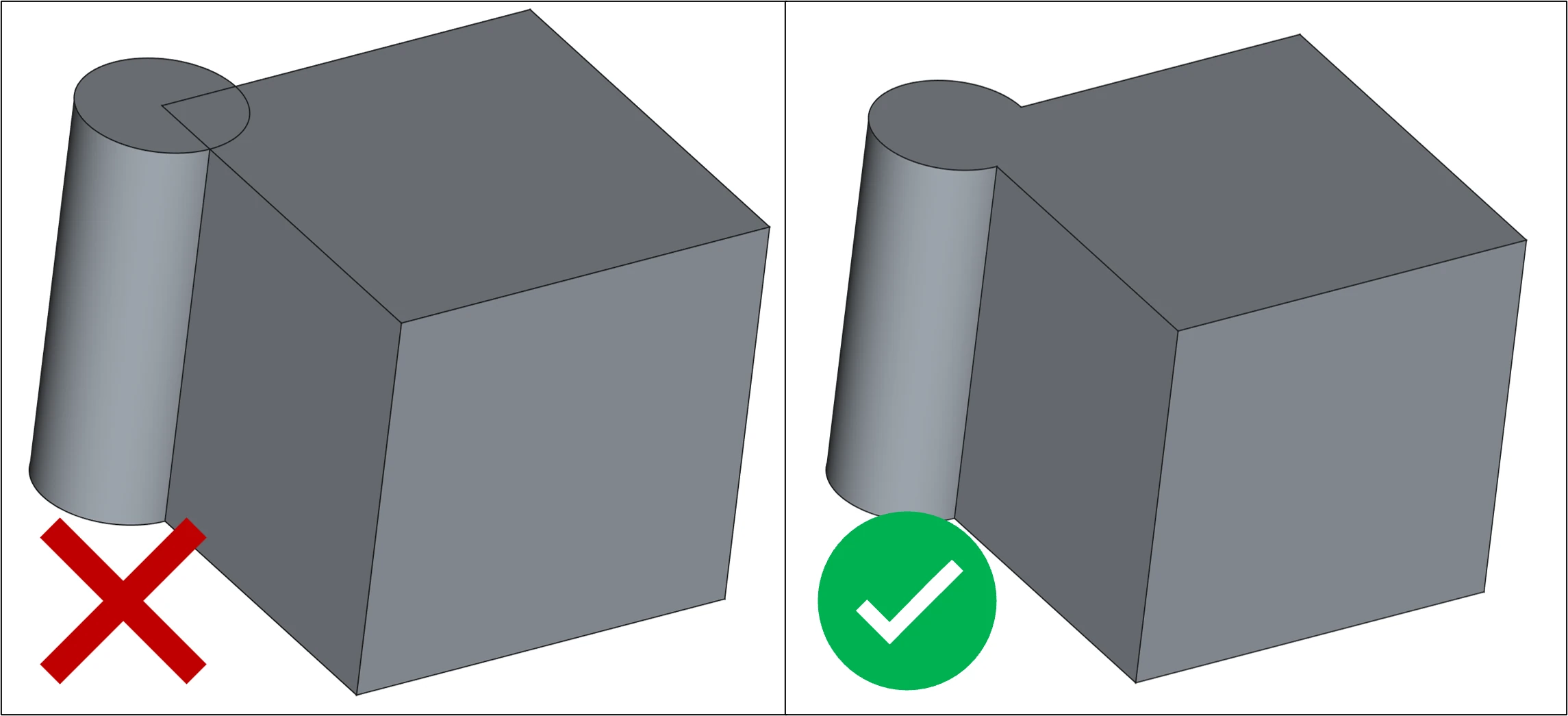
- Merged bodies: The upload has no merge option for fluid projects, so if your model has multiple bodies, we recommend merging or boolean-unioning them in CAD before importing. For rotating flow, a non-rotating body can be uploaded separately as a Stationary Body.
- Watertight (closed) surface: The geometry must have no open edges or holes. If the model is not watertight, try Surface Wrap in Geom.
- No self-intersections: Surfaces must not overlap or intersect.
- Outward-facing normals (for
.stl): All face normals must point consistently toward the exterior of the geometry. - Simplified geometry: Remove internal cavities, fasteners, and small fillets if they are not aerodynamically relevant. These features increase mesh complexity without contributing to flow accuracy.
3.3. Sample CAD File
The upload view also offers Sample Models.
- ONERA-M6.step — NASA NPARC Alliance Validation Archive benchmark model
4. Rapid Aerodynamics (Vortex Lattice) CAD Requirements
4.1. Supported Format
.stl: Only STL format is supported. The surface mesh included in the STL file is used directly as the panel mesh for the Rapid Aerodynamics solver. A body STL is optional: propeller projects have no body upload step.
4.2. Geometry Requirements
- Maximum 4,000 surface elements: The
.stlfile must contain no more than 4,000 triangular faces. A file over this limit is rejected at upload. - No duplicate, overlapping or degenerate triangles, and no non-manifold edges: Such files are rejected at upload. An edge shared by more than two triangles is non-manifold.
- Surface quality: Open edges are accepted at upload, though a closed surface is recommended.
- Outward-facing normals: All triangle normals must point consistently toward the exterior of the geometry.
4.3. Sample CAD File
A sample STL file is provided for testing Rapid Aerodynamics workflows. The upload view also offers Sample Models.
- Skysurfer Vortex.stl — Sample CAD for Rapid Aerodynamics analysis
5. General CAD Preparation Checklist
Before uploading your CAD file to any simulation type, run through the following checklist:
- File is saved in the correct format for the selected simulation type
- For FEA and CFD: geometry is closed and watertight (no open edges or holes)
- No self-intersecting faces
- All face normals point outward (especially for
.stl) - For CFD: multiple bodies have been merged in CAD
- For VLM: element count is ≤ 4,000, with no duplicate or degenerate triangles
- Unnecessary internal features have been removed to simplify meshing
- The unit selected on import matches the file (STL and BREP carry no unit information)
Need Assistance or Have Questions?
Frequently Asked Questions: FAQ Link
Support Inquiries: support@everysim.io